
Receive tips on your phone.
Set the tip amount in Tippify. Your customer taps their card or mobile wallet on your phone, and you see the result on your screen.
- Contactless card or mobile wallet
- A supported phone
- You set the amount
Two people. One tap.
The person receiving the tip sets an amount on their phone. The customer taps their card or mobile wallet, and the recipient sees the result.
Customer
Recipient
R20 selected
Card detected
Tip received
Follow a tip from start to finish.
The recipient’s screen changes as the tip moves through each stage. Follow an example R20 tip as the customer taps and the result appears.
See the recipient’s screenOpen a new tip
The person receiving the tip opens Tippify on a supported phone.
Set the amount
Choose the amount together. Here, the customer is giving R20.
Get ready for contact
The customer brings a contactless card or mobile wallet to the recipient’s phone.
Wait for the result
The recipient’s screen shows that the tip is being processed.
Check the confirmation
The recipient checks the result on their phone. If a tap is unsuccessful, check the outcome before trying again.
Tippify
New tip · Example
R20.00
Choose an amount
Ready to tap
Customer card or mobile wallet
- Processing tip
Tap detected
Tip received
No money moved
R20.00 Tip received.
What each person needs.
The receiver sets up the tip. The customer supplies the card or wallet. The payment result appears on the receiver’s screen.
Receiver
Runs Tippify on a supported phone.
Customer
Uses a contactless card or compatible mobile wallet.
Tip amount
Selected on the receiver’s screen.
Tap method
Bring the card or wallet to the receiver’s phone.
Ready state
The receiver presents the phone when ready.
Processing
Wait for the result on the receiver’s screen.
Success
The phone confirms the outcome.
Unsuccessful
Check the result and try again if needed.
At the counter. At the door.
Good service can happen at a table, behind a chair, in a hotel lobby or on a doorstep. Explore where a tip fits into the moment.
Illustrative moments
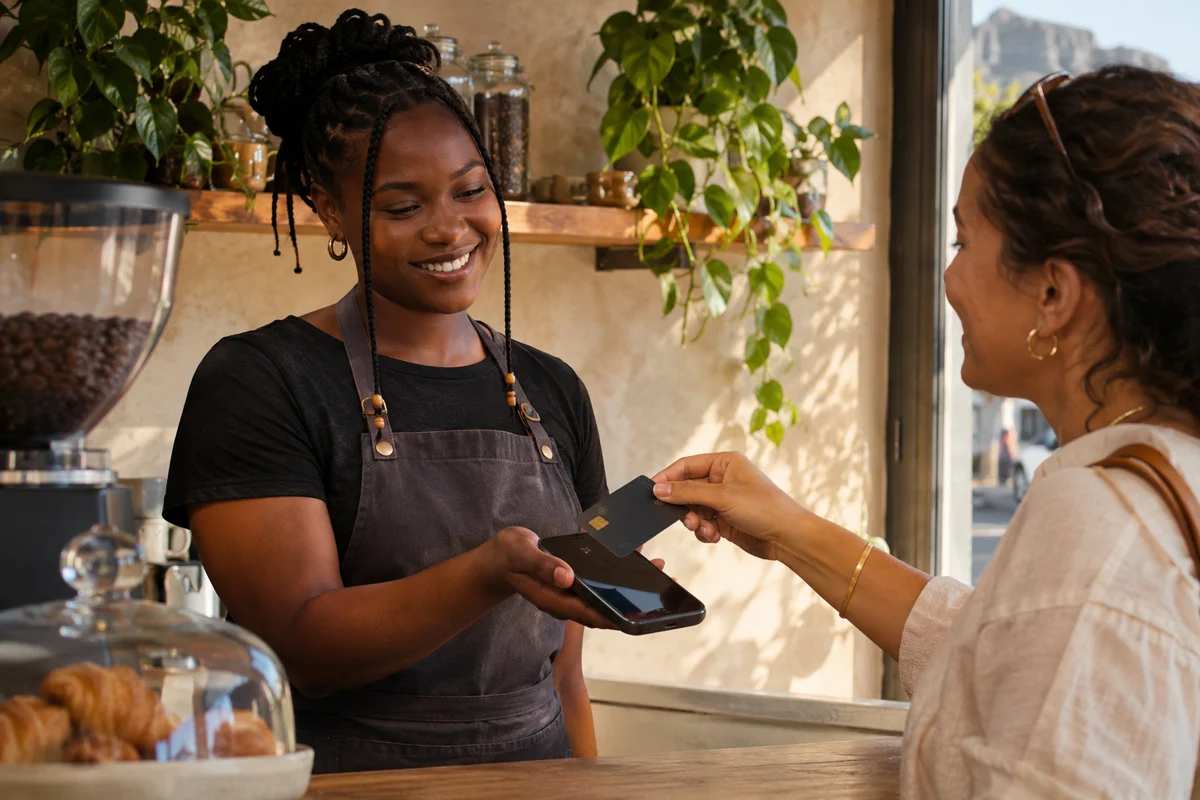
At the counter
From a regular to their barista

After a fresh cut
From a client to their stylist

At the hotel
From a guest to the person who helped

On the doorstep
From a customer to their courier

Back at the car
From a driver to their car guard
What a tip can look like.
After a cut, the barber opens a tip on their phone. The customer checks the amount and taps before heading out.
At the barbershop
Illustrative scenario
First coffee
A regular adds a tip for the barista who got the morning started.
After the cut
A client thanks the stylist as they settle up.
Bags to the room
A guest tips the porter who gave them a hand.
At the door
A customer thanks their courier after a delivery.
After lunch
A diner taps a tip for the person who served their table.
Back at the car
A driver thanks the person who looked out for their car.
Before checkout
A guest tips someone who helped them during their stay.
After the appointment
A client tips the technician who took extra care.
Choose. Tap. Check.
The same three steps apply wherever the tip happens.
Choose an amount
The recipient opens Tippify on a supported phone and selects an amount.
Tap a card or wallet
The customer holds a contactless card or compatible mobile wallet to the recipient’s phone.
Check the result
The recipient checks the outcome on their phone before the customer leaves.
Questions about tipping.
New to Tippify? Follow a tip from start to finish.
Who opens the app?
The person receiving the tip opens Tippify on a supported phone. The customer taps their card or mobile wallet.
Does the customer need Tippify?
The contactless payment flow uses the receiver’s app and the customer’s contactless card or compatible mobile wallet.
Who chooses the amount?
The recipient enters or selects the amount on their phone. The customer can check it before they tap.
Which devices can receive tips?
The recipient needs a supported phone. The full compatibility list has yet to be published.
What if a tap is unsuccessful?
Check the payment result on the receiver’s screen before trying again. You can practise the retry in the browser.
Can I try it before using it?
Yes. The practice workspace lets you choose an amount and see both outcomes.
Does practice mode charge me?
Practice mode moves no money and needs no card details.
Where could I use Tippify?
The same flow fits cafés, salons, hotels, deliveries and other situations where you want to tip someone directly.
Find your next step.
Explore how Tippify works from the customer’s and recipient’s side.
Walkthrough
Follow a tipEveryday uses
Explore examplesPractice mode
Practise a tip
Which side of the tap?
If you’re giving a tip, have a contactless card or compatible wallet ready. If you’re receiving it, the recipient guide shows how to set an amount and check the result.
See how to receive tips